Author: Paul Sammy Oracle Ace March 8th 2026
References: Verifying Digital Signature and Integrity of Installation Archive Files
When reading the Linux installation Guide for Oracle 26ai, we see an interesting section
“Starting with Oracle AI Database 26ai, Oracle digitally signs the installation archive files with Oracle certificates to ensure the integrity of the packages before you deploy them in your environments.”
This blogs reviews this new security addition.
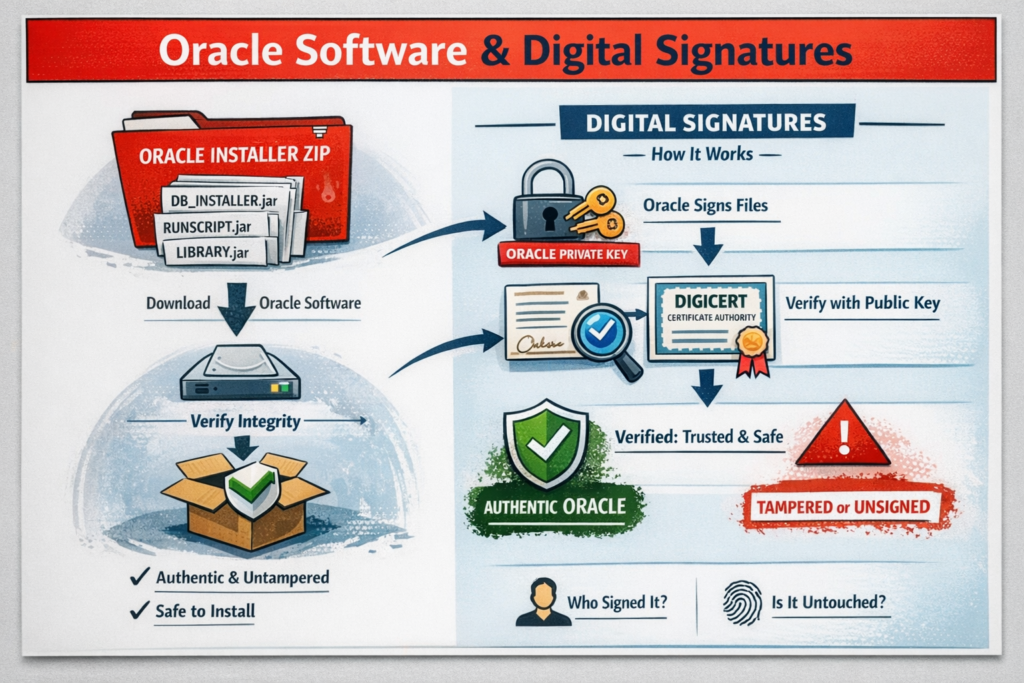
What is a Digital Signature?
A digital signature in software is a cryptographic stamp that proves two things at once:
- Who created or sent a piece of software or data (authenticity) i.e. Oracle Corporation
- That it hasn’t been changed since it was signed (integrity)
It’s the digital equivalent of a tamper‑proof wax seal on a letter, except backed by strong mathematics rather than melted wax.
How can we check the Digital Signature of Oracle 26ai for Linux
There is a platform independent tool called “jarsigner“, that can be used to check the integrity of the downloaded Oracle 26ai s/w
- This tool is found with JDK installations : Oracle JDK or Open JDK
- While jarsigner is designed for JAR files, Oracle ZIP archives contain signed JARs internally. So jarsigner verifies the signatures of those internal JARs, not the ZIP container itself.
Perform the checks
There are 2 checks a quick check and a detailed check, we will demonstrate both below
- Assume we have downloaded our Oracle s/w, with name below, adjust name if your file is named differently
- Software File Name: LINUX.X64_2326100_db_home.zip
- Run jarsigner command to check file authenticity
- Update path for JDK bin so you can use jarsigner
- example below updated as requried
export PATH=$PATH:/u01/app/product/23.26.1/oracle/jdk/bin
which jarsigner
Lets assign the name of our zip to a variable so it can be used
ORACLE_SOFTWARE_ZIP=LINUX.X64_2326100_db_home.zip
echo $ORACLE_SOFTWARE_ZIP
1. Quick Check using jarsigner
jarsigner -verify $ORACLE_SOFTWARE_ZIP
- Allow 1 minute for command to complete
- Look for jar verified in output
An unsigned jar check would show as below (I’ve used a random .jar to check)

- POSIX warning is normal and expected for any ZIP that contains POSIX file permissions or symlinks due to:
- ZIP files can store Unix permissions (e.g., 755, 644).
- ZIP files can store symbolic links.
- Java’s signing mechanism does not sign those attributes, only the file contents
2. Detailed Check using jarsigner
- In the output of the quick check we can see for detailed check
- rerun with -verbose and -certs for more details
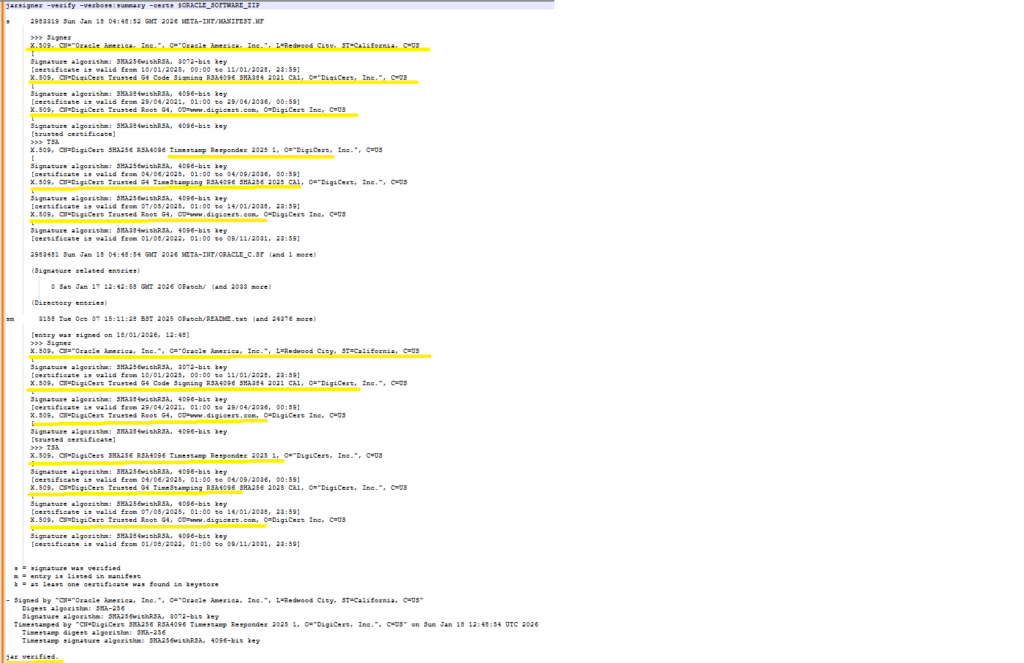
jarsigner -verify -verbose:summary -certs $ORACLE_SOFTWARE_ZIP- This produces alot more output as expected, key things to check
- The archive is fully verified: You want to see: jar verified.
- The signer is Oracle: You want to see: CN=”Oracle America, Inc.”
- The certificate chain is trusted and issued by DigiCert
- Oracle America, Inc. (the signer)
- DigiCert Code Signing CA
- DigiCert Trusted Root G4 (trusted root)
- A valid Timestamp from DigiCert TSA
- Timestamped by “CN=DigiCert SHA256 RSA4096 Timestamp Responder 2025 1
Optional other good indicators:
- SHA-256 digest algorithm
- SHA256withRSA, 3072‑bit key (Oracle’s signing key)
- 4096‑bit RSA keys for the CA and TSA
- Certificate validity dates that make sense relative to the timestamp
3. Performing check from Windows using OpenJDK
- Often we download s/w using Windows we can perform same check there as well as below
- I have Adoptium Open JDK installed : Latest Releases | Adoptium
jarsigner -verify .\LINUX.X64_2326100_db_home.zip
Testing a 19c Oracle s/w download
- We expect this to show unsigned as this is a 26ai feature

Summary
Users downloading or using an Oracle 26ai software source should run a signature check on that file to ensure its authenticity.